

Time required: About 10 minutes for initial setup. Your first briefing appears within 30 seconds of connecting email. Full Contact Intelligence (top 50 contacts) builds in the background over the next hour.
Step 1: Create Your Account
1
Go to outband.ai and select Get Started
You can sign up with your email address and a password, or use Google or Microsoft sign-in for faster setup.
2
Choose your language
On the welcome screen, select your preferred language: English or Japanese. You can change this later in Settings.
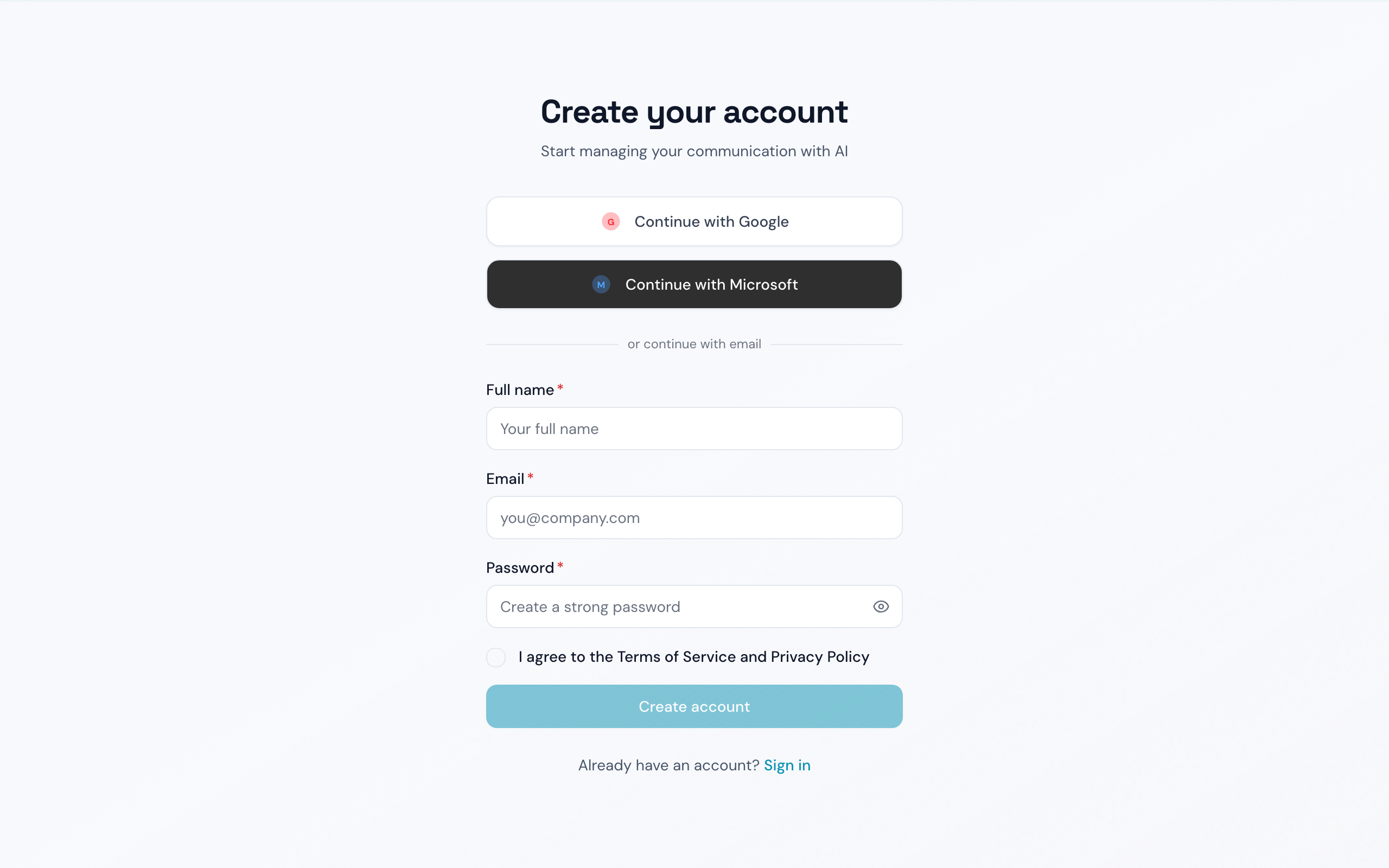
Create your Outband account
Step 2: Connect Your Email
This is the most important step. Outband needs access to your email to build your Contact Intelligence.1
Select your email provider
Choose Gmail or Outlook. If you use another IMAP-compatible provider, select Outlook and enter your IMAP settings.
2
Grant permissions
You will be redirected to Google or Microsoft to authorize Outband. Outband requests read access to your emails so it can analyze your communication patterns.
3
Watch your briefing build
As soon as you grant access, Outband starts processing your recent emails. Within 30 seconds, you will see a preview of your first Daily Briefing appear on screen.
Step 3: Set Your Communication Style
While Outband processes your emails in the background, you can configure your preferences.1
Choose your communication style
Select from Formal, Casual, or Adaptive (automatically matches the tone of each conversation). Adaptive is recommended for most users.
2
Mark your VIP contacts
Select 5-10 contacts who are most important to you. Outband will prioritize these in your briefings and build their Contact Models first.
3
Set your initial trust level
Choose how much autonomy Outband starts with. Most users begin with Observer mode, where Outband only reads and summarizes without taking any actions.
Step 4: Explore Your First Briefing
After setup, you land on your Dashboard — the Daily Briefing view. You will see your communications organized into clear sections:
Each briefing item shows:
- Who the message is from (with their Contact Model confidence level)
- What the AI thinks the message is about
- Why it was categorized this way
- What you can do — reply, archive, snooze, or escalate
What Happens Next
Within 1 hour
Outband builds Contact Models for your top 50 contacts by analyzing your email history. You will start seeing contact insights on each briefing item.
Within 1 day
Your Personal DNA — your own communication profile — becomes more refined. Drafts start matching your voice more closely.
Within 1 week
Contact Models improve with each new interaction. If you use Drafter mode, the RLHF feedback loop kicks in — every correction makes future drafts better.
Ongoing
The longer you use Outband, the more accurate it becomes. Contact intelligence compounds over time.
Optional: Connect More Channels
You can connect additional channels at any time from Settings > Connected Accounts:- Outlook (if you started with Gmail, or vice versa)
- Slack — read channels and DMs for unified communication intelligence
- WhatsApp — monitor WhatsApp Business messages
- Calendar — Google Calendar or Outlook Calendar for meeting context
Each channel you connect enriches your Contact Models with cross-channel context. A contact you email and also message on Slack will have a richer, more accurate Contact Model.
Next Steps
Daily Briefing
Learn how to get the most out of your Daily Briefing.
Trust Levels
Understand when and how to give Outband more autonomy.
Drafts
Start using AI-powered draft responses.
Contact Intelligence
Explore your Contact Models and Perception Prediction.