

Creating Your Account
You can create an Outband account in three ways:- Email and password — Enter your email address and choose a password
- Sign in with Google — Use your Google account for one-click signup
- Sign in with Microsoft — Use your Microsoft account for one-click signup
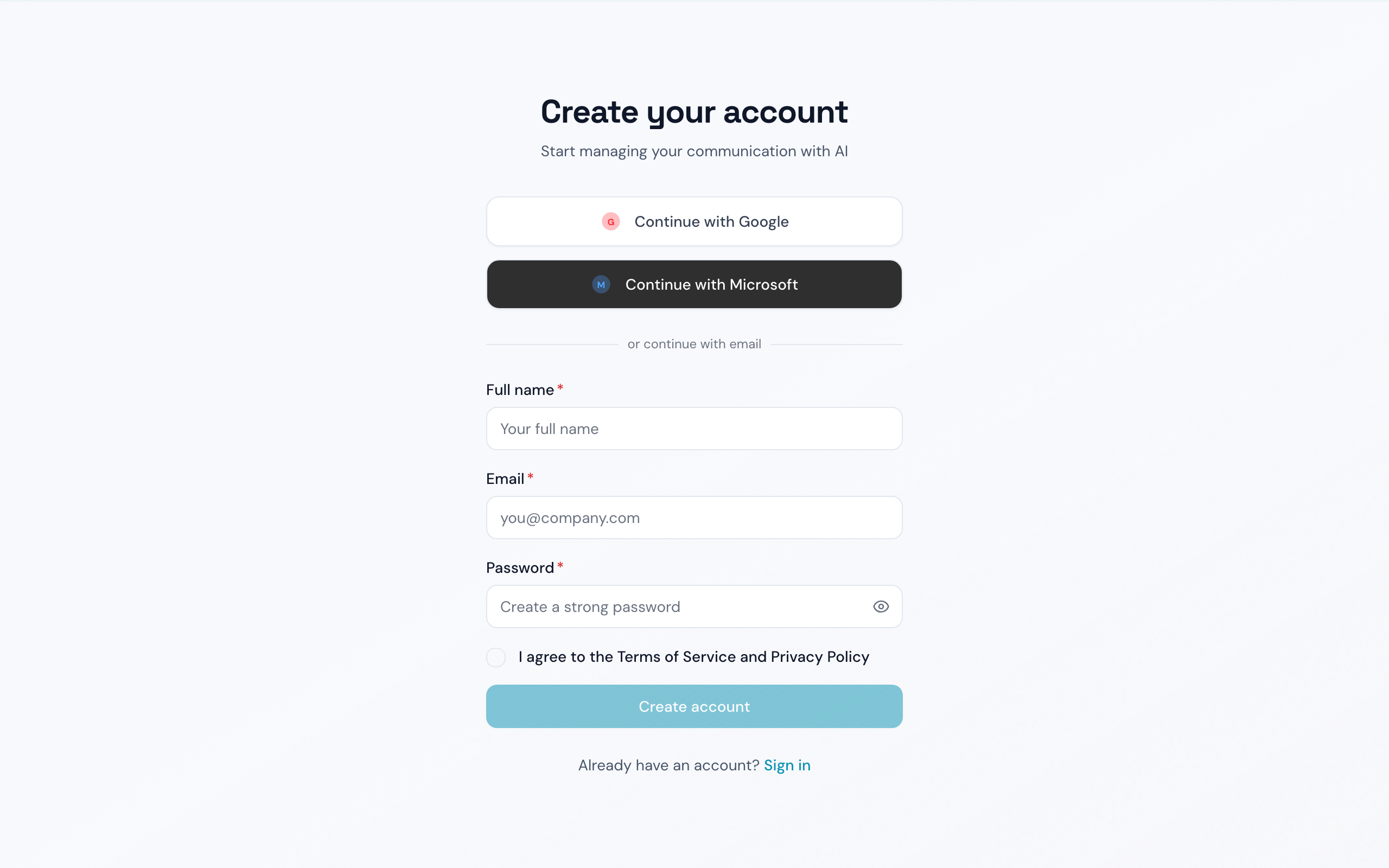
Create your Outband account
Connecting Your Email
Connecting your email is the single most important step. Outband analyzes your email history to build Contact Intelligence.Gmail
- On the Connect Email screen, select the Gmail button
- You will be redirected to Google’s authorization page
- Review the permissions Outband is requesting and select Allow
- You will be returned to Outband, and processing begins immediately
Outlook
- Select the Outlook button
- Sign in to your Microsoft account
- Review and approve the requested permissions
- Outband begins processing your email
Other email providers (IMAP)
If you use a different email provider that supports IMAP, you can connect it through the Outlook/IMAP option by providing your IMAP server settings.What Happens After You Connect
Once you grant email access, several things happen simultaneously:Setting Your Communication Style
Choose how you typically communicate:- Formal — Professional, structured language. Best for executives and external-facing roles.
- Casual — Relaxed, conversational tone. Best for internal team communication.
- Adaptive (recommended) — Outband automatically matches the tone of each conversation. Formal with your board, casual with your team.
Marking VIP Contacts
Select 5-10 contacts who matter most to you. VIP contacts:- Appear at the top of your Daily Briefing
- Have their Contact Models built first
- Are never auto-handled, even at higher trust levels
- Always require your personal attention
Choosing Your Trust Level
Your initial trust level determines how much Outband can do on your behalf. See Trust Levels for a detailed explanation. For most new users, we recommend starting with Observer — Outband reads and summarizes your communications without taking any actions. You can upgrade your trust level as you become more comfortable.Skipping Setup Steps
Every step after connecting your email is optional. If you want to get started quickly:- Select Skip on any setup screen to use default settings
- Outband applies sensible defaults (Adaptive style, Observer trust level)
- You can configure everything later from Settings
Signing In Later
When you return to Outband:- Go to outband.ai
- If your session is still active, you will be taken directly to your Dashboard
- If your session has expired, sign in with your email/password or social account
- You will be returned to whatever page you were on before
Outband supports light mode, dark mode, and system preference. You can change your theme from Settings > Appearance.
Next Steps
Daily Briefing
Learn how to use your Daily Briefing effectively.
Connect More Channels
Add Slack, WhatsApp, and Calendar for richer intelligence.