> ## Documentation Index
> Fetch the complete documentation index at: https://docs.outband.ai/llms.txt
> Use this file to discover all available pages before exploring further.
# Quick Start
> Set up Outband in 10 minutes and receive your first AI-powered Daily Briefing.
This guide walks you through setting up Outband from scratch. By the end, you will have your first Daily Briefing and a working Contact Intelligence system.
**Time required**: About 10 minutes for initial setup. Your first briefing appears within 30 seconds of connecting email. Full Contact Intelligence (top 50 contacts) builds in the background over the next hour.
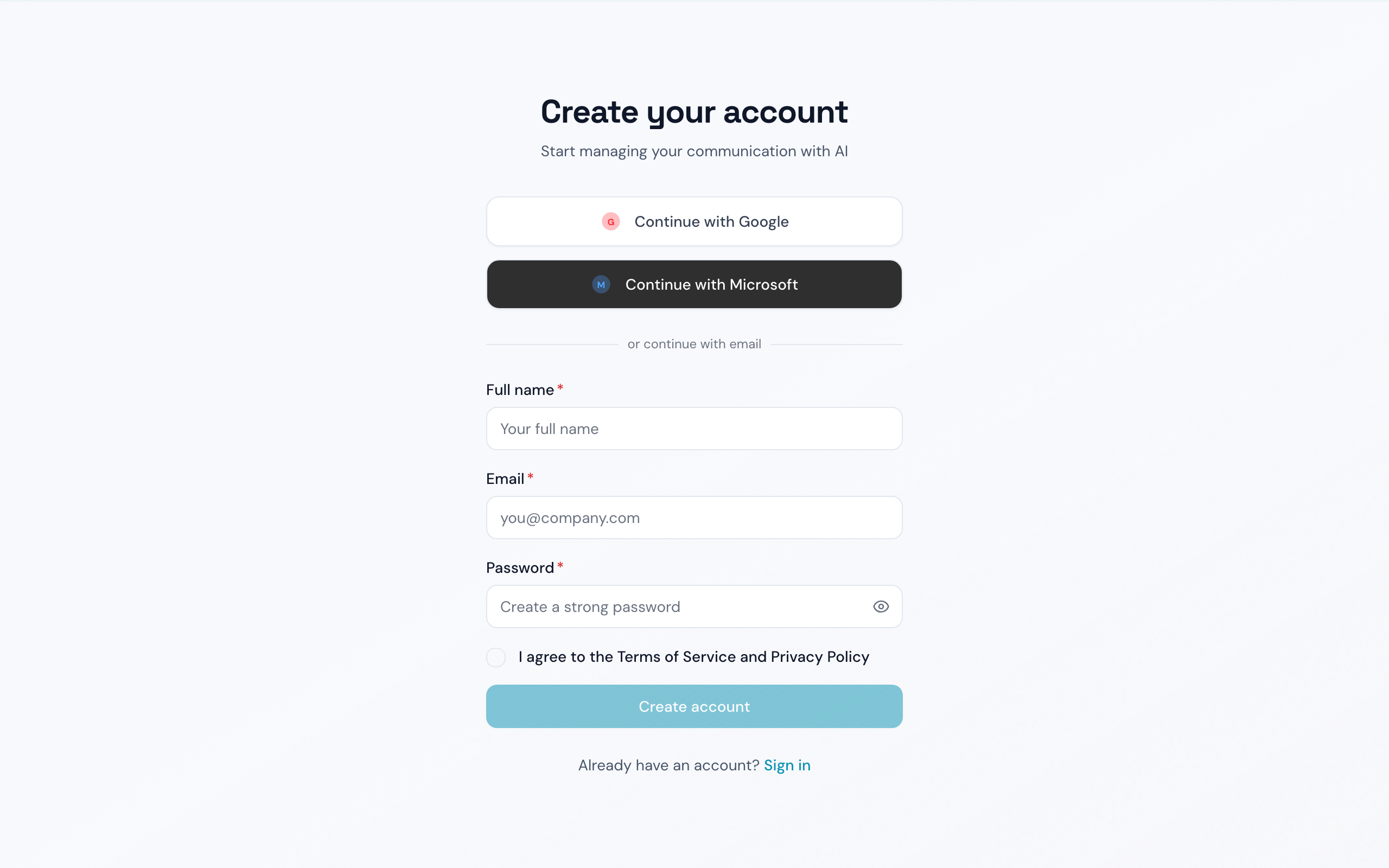
## Step 1: Create Your Account
You can sign up with your email address and a password, or use Google or Microsoft sign-in for faster setup.
On the welcome screen, select your preferred language: English or Japanese. You can change this later in Settings.
 ## Step 2: Connect Your Email
This is the most important step. Outband needs access to your email to build your Contact Intelligence.
Choose **Gmail** or **Outlook**. If you use another IMAP-compatible provider, select Outlook and enter your IMAP settings.
You will be redirected to Google or Microsoft to authorize Outband. Outband requests read access to your emails so it can analyze your communication patterns.
Outband uses industry-standard OAuth. Your email password is never stored by Outband. You can revoke access at any time from your Google or Microsoft account settings.
As soon as you grant access, Outband starts processing your recent emails. Within 30 seconds, you will see a preview of your first Daily Briefing appear on screen.
## Step 3: Set Your Communication Style
While Outband processes your emails in the background, you can configure your preferences.
Select from **Formal**, **Casual**, or **Adaptive** (automatically matches the tone of each conversation). Adaptive is recommended for most users.
Select 5-10 contacts who are most important to you. Outband will prioritize these in your briefings and build their Contact Models first.
Choose how much autonomy Outband starts with. Most users begin with **Observer** mode, where Outband only reads and summarizes without taking any actions.
You can skip this step and all remaining setup steps. Outband applies sensible defaults and you can adjust everything later in Settings.
## Step 4: Explore Your First Briefing
After setup, you land on your **Dashboard** -- the Daily Briefing view.
You will see your communications organized into clear sections:
| Section | What it shows |
| --------------------------- | --------------------------------------------------------------------------------------------------------------------------- |
| **Urgent / Needs Response** | Messages that need your attention today |
| **For Your Information** | Updates you should know about but do not need to respond to |
| **Auto-Handled** | Messages Outband has already categorized (in Observer mode, this shows what *would* be auto-handled at higher trust levels) |
Each briefing item shows:
* **Who** the message is from (with their Contact Model confidence level)
* **What** the AI thinks the message is about
* **Why** it was categorized this way
* **What you can do** -- reply, archive, snooze, or escalate
## What Happens Next
Outband builds Contact Models for your top 50 contacts by analyzing your email history. You will start seeing contact insights on each briefing item.
Your Personal DNA -- your own communication profile -- becomes more refined. Drafts start matching your voice more closely.
Contact Models improve with each new interaction. If you use Drafter mode, the RLHF feedback loop kicks in -- every correction makes future drafts better.
The longer you use Outband, the more accurate it becomes. Contact intelligence compounds over time.
## Optional: Connect More Channels
You can connect additional channels at any time from **Settings > Connected Accounts**:
* **Outlook** (if you started with Gmail, or vice versa)
* **Slack** -- read channels and DMs for unified communication intelligence
* **WhatsApp** -- monitor WhatsApp Business messages
* **Calendar** -- Google Calendar or Outlook Calendar for meeting context
Each channel you connect enriches your Contact Models with cross-channel context. A contact you email and also message on Slack will have a richer, more accurate Contact Model.
## Next Steps
Learn how to get the most out of your Daily Briefing.
Understand when and how to give Outband more autonomy.
Start using AI-powered draft responses.
Explore your Contact Models and Perception Prediction.
## Step 2: Connect Your Email
This is the most important step. Outband needs access to your email to build your Contact Intelligence.
Choose **Gmail** or **Outlook**. If you use another IMAP-compatible provider, select Outlook and enter your IMAP settings.
You will be redirected to Google or Microsoft to authorize Outband. Outband requests read access to your emails so it can analyze your communication patterns.
Outband uses industry-standard OAuth. Your email password is never stored by Outband. You can revoke access at any time from your Google or Microsoft account settings.
As soon as you grant access, Outband starts processing your recent emails. Within 30 seconds, you will see a preview of your first Daily Briefing appear on screen.
## Step 3: Set Your Communication Style
While Outband processes your emails in the background, you can configure your preferences.
Select from **Formal**, **Casual**, or **Adaptive** (automatically matches the tone of each conversation). Adaptive is recommended for most users.
Select 5-10 contacts who are most important to you. Outband will prioritize these in your briefings and build their Contact Models first.
Choose how much autonomy Outband starts with. Most users begin with **Observer** mode, where Outband only reads and summarizes without taking any actions.
You can skip this step and all remaining setup steps. Outband applies sensible defaults and you can adjust everything later in Settings.
## Step 4: Explore Your First Briefing
After setup, you land on your **Dashboard** -- the Daily Briefing view.
You will see your communications organized into clear sections:
| Section | What it shows |
| --------------------------- | --------------------------------------------------------------------------------------------------------------------------- |
| **Urgent / Needs Response** | Messages that need your attention today |
| **For Your Information** | Updates you should know about but do not need to respond to |
| **Auto-Handled** | Messages Outband has already categorized (in Observer mode, this shows what *would* be auto-handled at higher trust levels) |
Each briefing item shows:
* **Who** the message is from (with their Contact Model confidence level)
* **What** the AI thinks the message is about
* **Why** it was categorized this way
* **What you can do** -- reply, archive, snooze, or escalate
## What Happens Next
Outband builds Contact Models for your top 50 contacts by analyzing your email history. You will start seeing contact insights on each briefing item.
Your Personal DNA -- your own communication profile -- becomes more refined. Drafts start matching your voice more closely.
Contact Models improve with each new interaction. If you use Drafter mode, the RLHF feedback loop kicks in -- every correction makes future drafts better.
The longer you use Outband, the more accurate it becomes. Contact intelligence compounds over time.
## Optional: Connect More Channels
You can connect additional channels at any time from **Settings > Connected Accounts**:
* **Outlook** (if you started with Gmail, or vice versa)
* **Slack** -- read channels and DMs for unified communication intelligence
* **WhatsApp** -- monitor WhatsApp Business messages
* **Calendar** -- Google Calendar or Outlook Calendar for meeting context
Each channel you connect enriches your Contact Models with cross-channel context. A contact you email and also message on Slack will have a richer, more accurate Contact Model.
## Next Steps
Learn how to get the most out of your Daily Briefing.
Understand when and how to give Outband more autonomy.
Start using AI-powered draft responses.
Explore your Contact Models and Perception Prediction.